
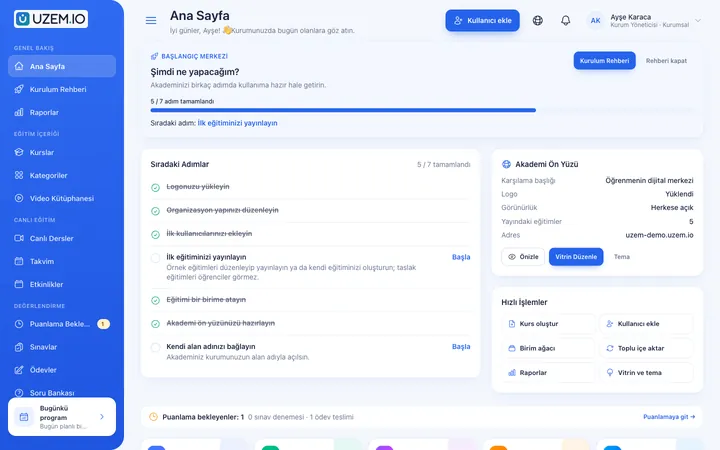
Lesson calendar
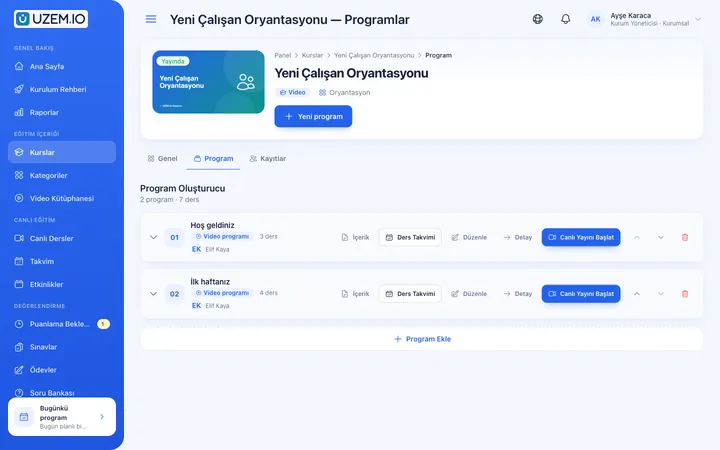
Add a single lesson or create the whole term at once with weekly recurrence. If you have a list, import it via CSV.
- Conflict check and preview
- Scheduled lessons appear on the calendar
Live training
Plan all of the term's lessons once in the Lesson Calendar. When the instructor starts the lesson, the learner's Join button becomes active; attendance is recorded, and the Zoom recording is added to the lesson when it ends.
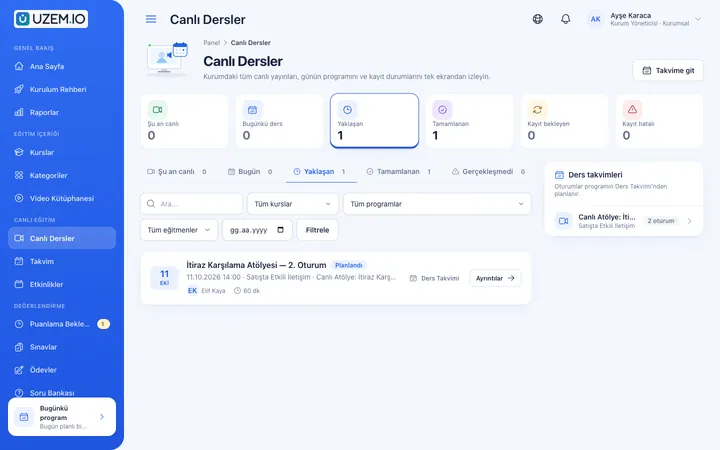
Add a single lesson or create the whole term at once with weekly recurrence. If you have a list, import it via CSV.
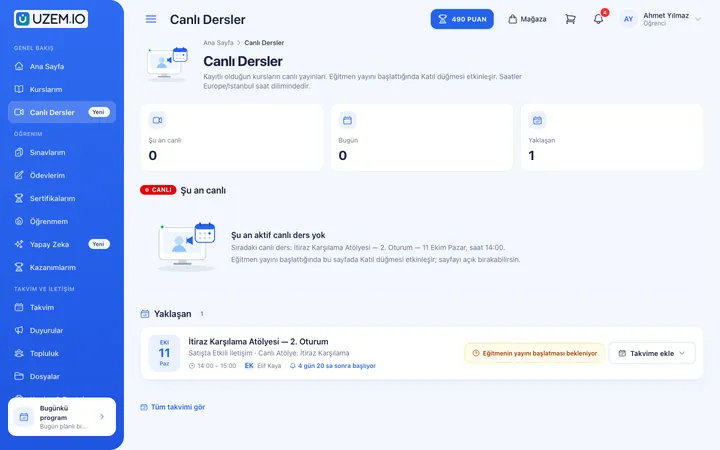
At the scheduled lesson time, the instructor starts the stream from the dashboard. Learners see “Waiting for the instructor to start the stream”; once it's live, the Join button becomes active.
Connect your organization's own Zoom account or run lessons with the Zoom account provided by the platform. Meetings are created automatically from the dashboard.
Who attended the lesson and how long they stayed is recorded. Track planned versus actual lesson time per instructor in reports.
After the lesson ends, the Zoom recording is transferred to the secure video infrastructure and added to the relevant lesson; learners who missed the session watch the recording.
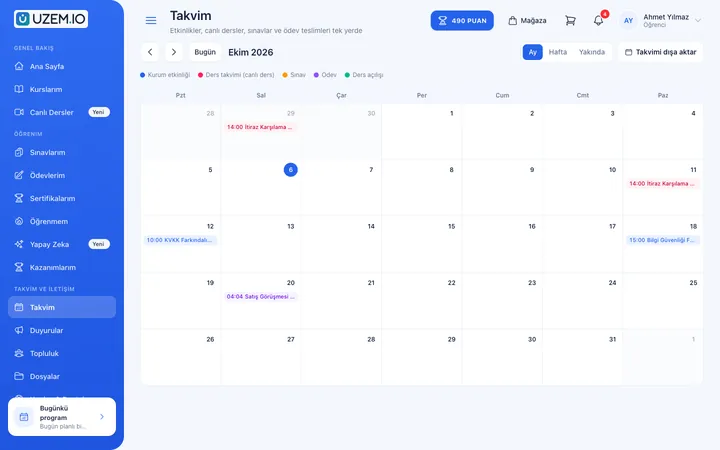
Learners add the lesson to their own calendar with one click (ICS). A reminder notification is sent as the lesson approaches.
Add the lesson to the calendar; recurring or in bulk via CSV.
The learner adds the lesson to their calendar and gets a notification before it starts.
The instructor opens the stream, and the learner's Join button becomes active.
Attendance is recorded, and the Zoom recording is added to the lesson.
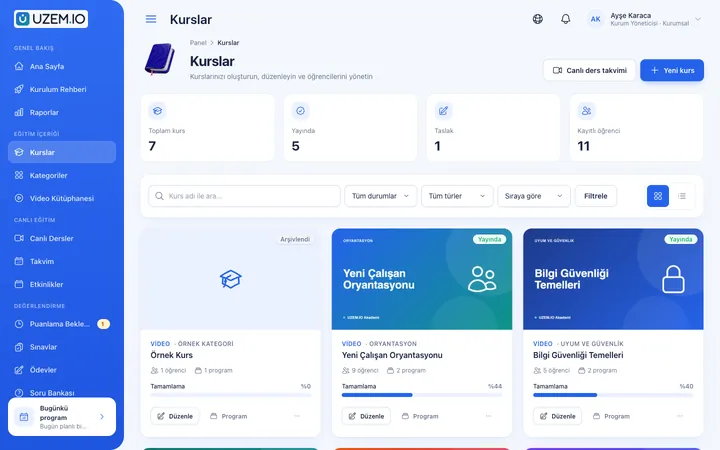
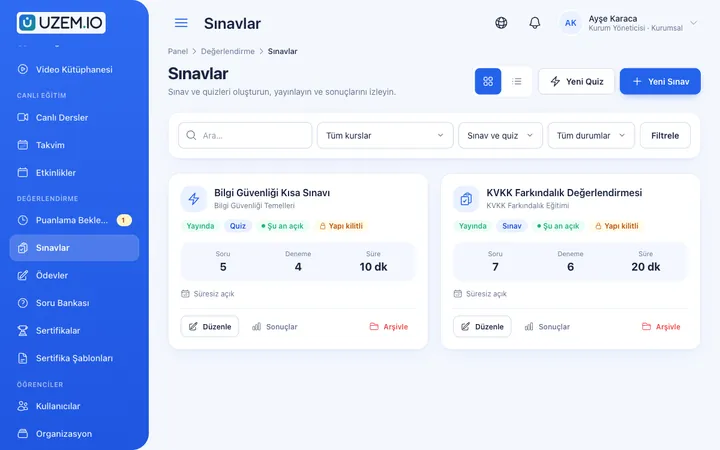
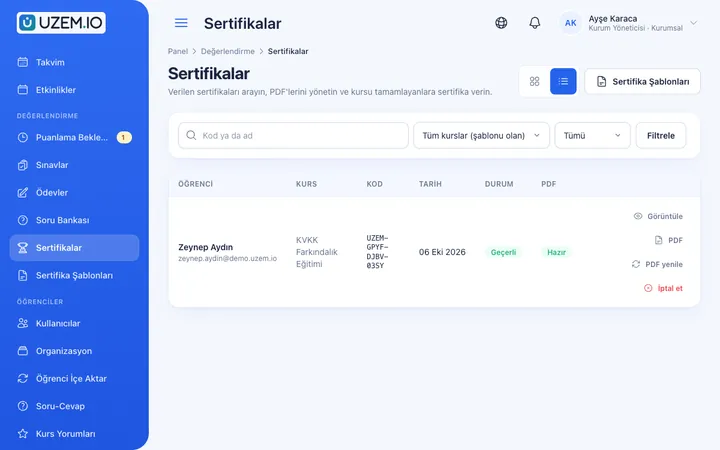
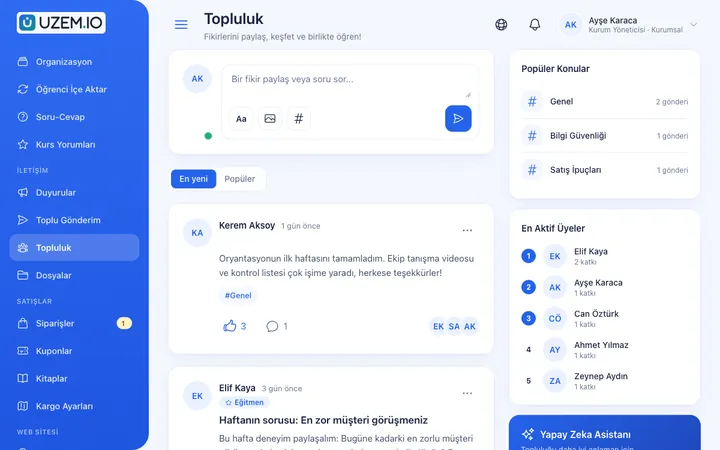
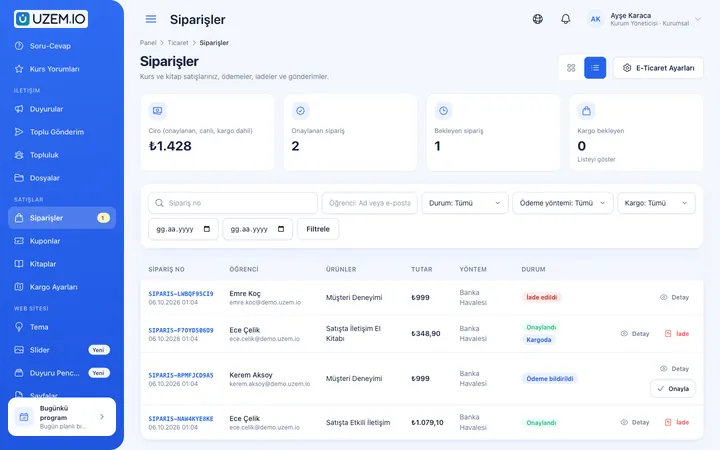
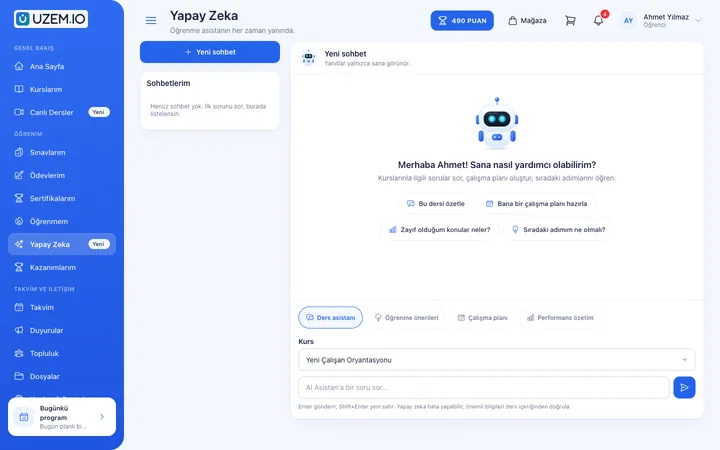
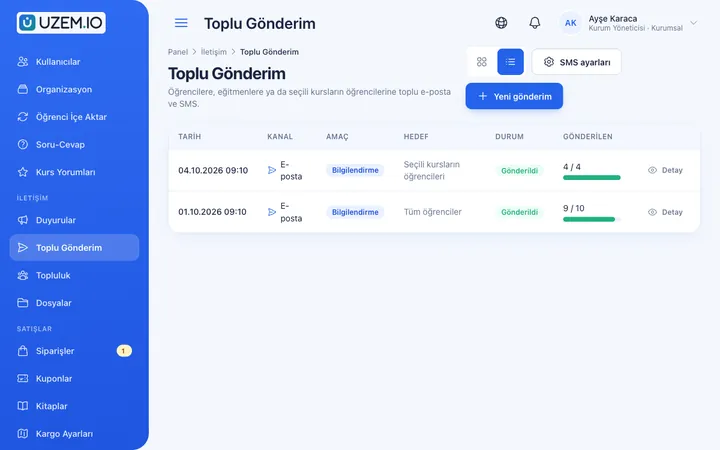
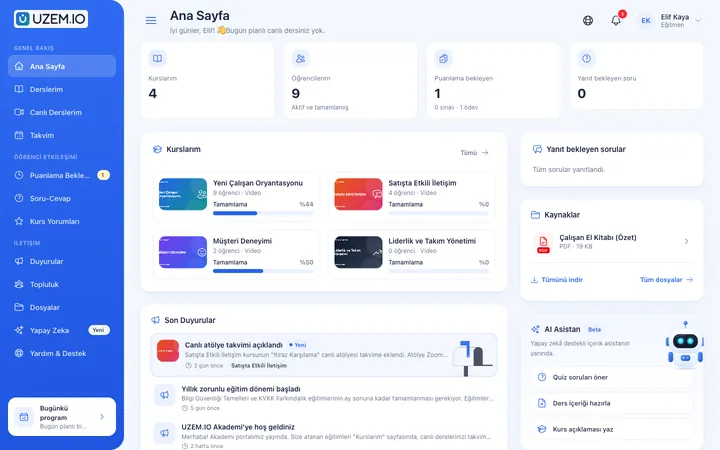
Screenshots are taken from UZEM's real interface with sample data.
If the answer you're looking for isn't here, write to us and our team will help.
Help centerLive sessions run on Zoom. You can connect your organization's Zoom account or use the Zoom account provided by the platform.
When the instructor starts the stream. Until then, learners see that the instructor is expected to start the stream; once it's live, the Join button becomes active.
When the Zoom recording is ready, it's automatically transferred to the secure video infrastructure and added to the lesson. Depending on the recording length, this may take a while.
Yes. You can create lessons in bulk with weekly recurrence or import a ready list from a CSV file. A preview and conflict check run before saving.
The Lesson Calendar is ready in your academy with sample content.
Strictly necessary cookies are used for the site to work. Analytics and marketing cookies are enabled only with your consent. Cookie policy