
Who are you training?
Employee Training
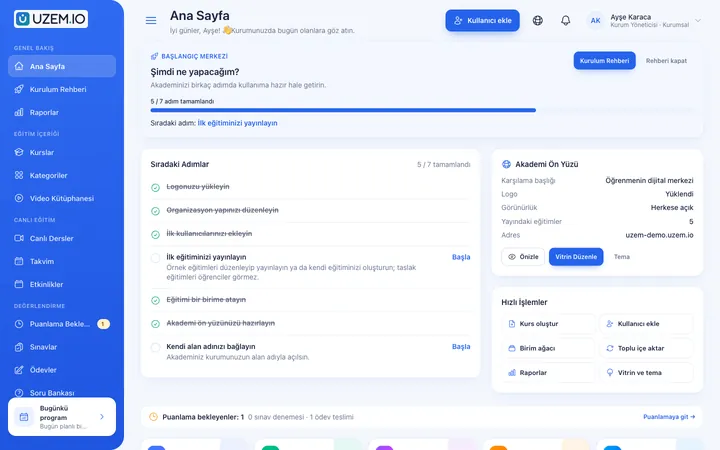
If training is scattered across emails, folders and class lists: gather all employee training in one corporate academy, assign it to people or units, and see who completed it in the report.
Suitable industries
- Corporate Companies
- Holdings and Groups of Companies
- Retail and Store Chains
- Logistics and Transportation
- Industry and Manufacturing
- Banking and Finance
- Healthcare / Hospitals / Clinics
- Aviation
Employee training is not a one-off event; it needs continuity
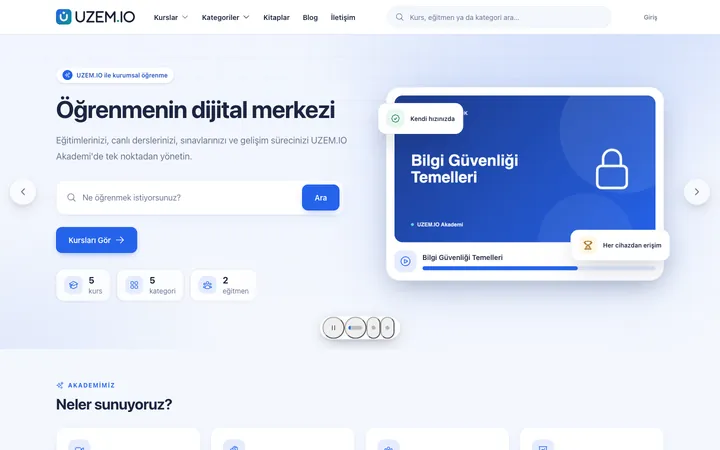
In many organizations, employee training is squeezed into a few classroom sessions a year, presentations sent by email and attendance lists kept by hand. UZEM brings this together in a single academy: you build content as courses, assign employees by department, and follow progress and exam results in reports. The academy opens with your logo and colors, so employees see from the first screen that the training belongs to their company.

Problems and solutions
Problem
Training content sits scattered across shared folders, email attachments and instructors’ computers.
Solution
Each training is published as a course with its sections and lessons; employees always reach the current content in the same place.
Problem
Who completed which training only becomes clear at period end, by merging spreadsheets.
Solution
Course progress, exam results and certificates are recorded automatically; reports are filtered by unit and exported as CSV.
Problem
Running the same training again and again for different teams eats up instructor time.
Solution
Video lessons recorded once are available to everyone; live sessions are reserved for topics that need Q&A and hands-on practice.
Problem
Whether training was understood is not measured; only attendance is counted.
Solution
Exams generated from the question bank with a passing score verify knowledge; those who pass receive a certificate.
Who is it for?
Human Resources teams
Teams that want to run the annual training plan from one dashboard instead of compiling completion data by hand at the end of each period.
Learning and development units
Units that produce content, offer different programs to different departments and want to show training impact with exam and completion data.
Department managers
Managers who want to see which training their team has finished on screens filtered to their own unit, without asking HR.
Multi-location businesses
Organizations that need to deliver the same content at the same quality to employees at offices, factories or stores in different cities.
Use cases
- Department-specific competency training Financial processes for finance, workflows for operations, communication training for customer service; each department sees its own catalog.
- Annual refresher training Reassign yearly training such as information security or occupational health to the whole company and track completion.
- New system and process rollouts When a new software tool or approval process goes live, inform everyone at once with short video lessons and announcements.
- Knowledge transfer with internal instructors Set up experienced employees as instructors; capture their know-how as courses and keep it in the organization.
- Manager development modules Build multi-section leadership programs that progress through live sessions, assignments and recordings.
Features used
Course and Program Management
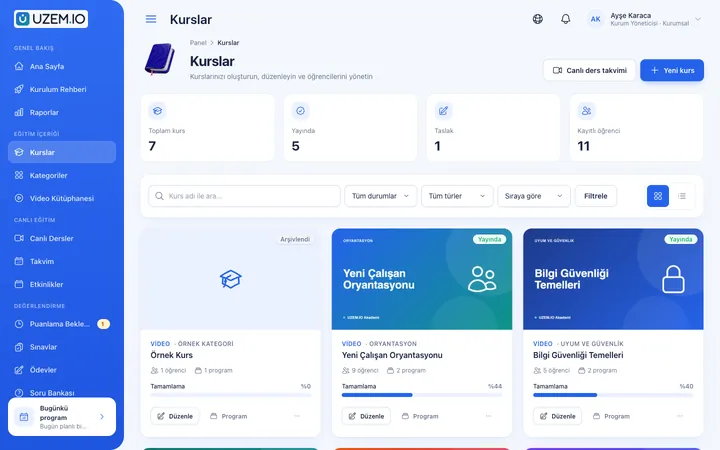
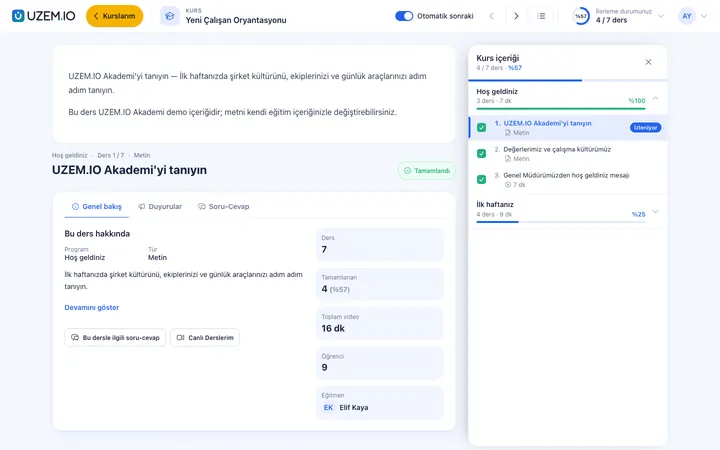
Organize your courses into programs and lessons; bring video, text, PDF, files, exams and live sessions together in a single flow.
Video Training
Publish your video lessons through a secure video infrastructure and record viewing progress for each lesson.
Live Training
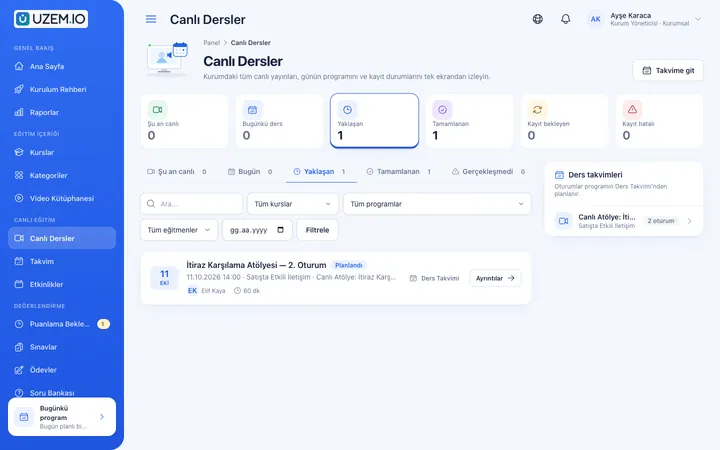
Schedule live sessions inside your courses with the Zoom integration; attendance is recorded and session recordings are added to the course as video lessons.
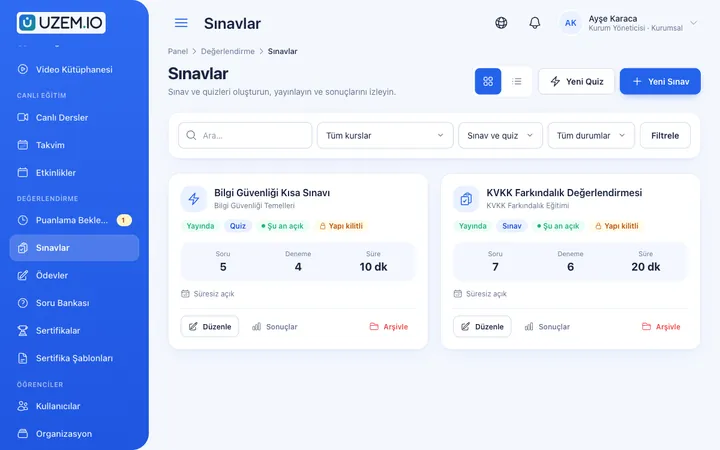
Exams
Measure learning with timed exams and quizzes; you decide the passing score, attempts, question shuffling and result visibility.
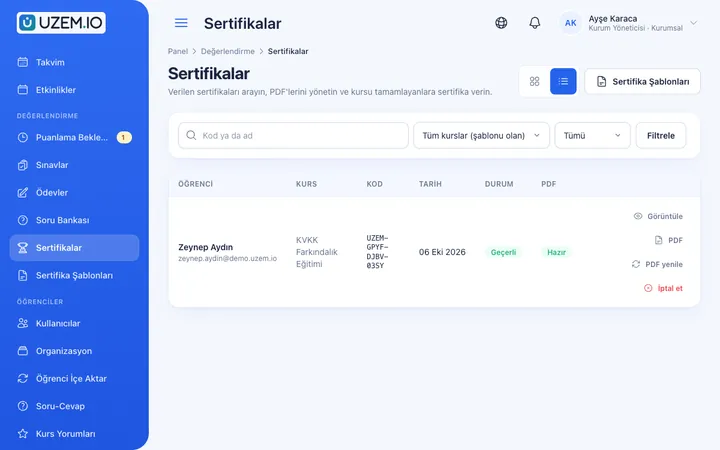
Certificates
Automatically issue certificates in your own design, verifiable by QR code, to everyone who completes a course.
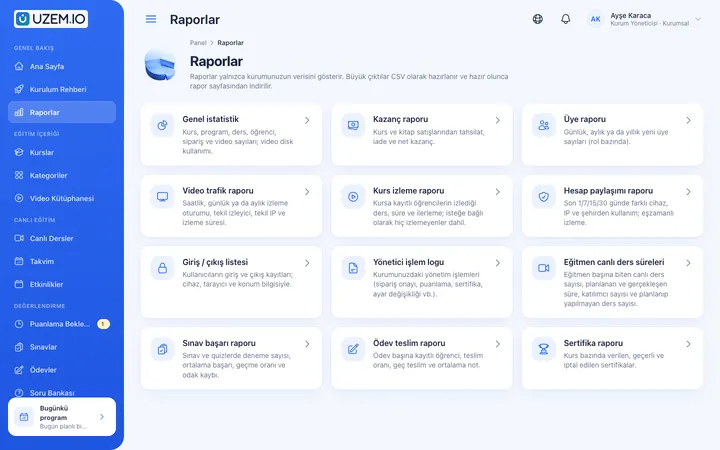
Reporting
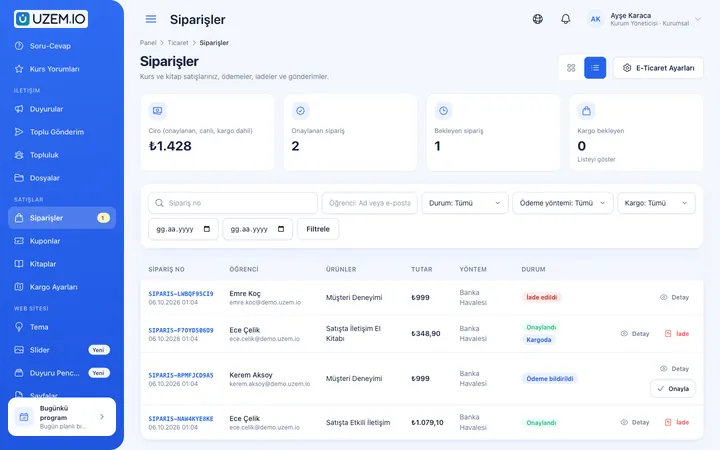
Report on course progress, video viewing, exams, assignments, certificates, live sessions and sales; export to CSV.
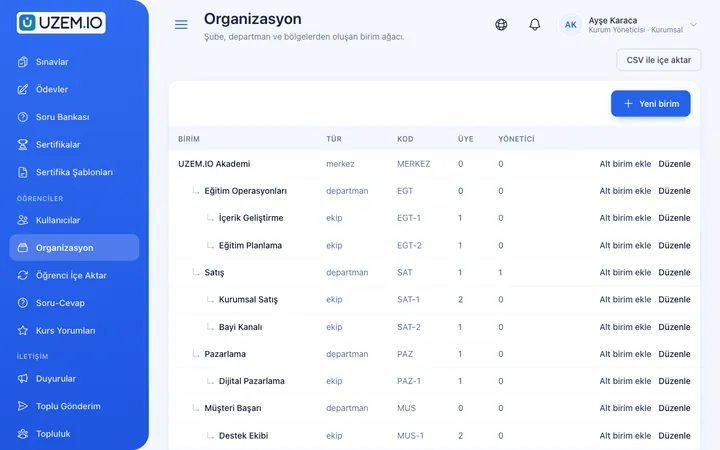
Organization Units
Build your departments, branches, regions and stores as a unit tree; assign training to units and let managers follow their own units in read-only mode.
Announcements
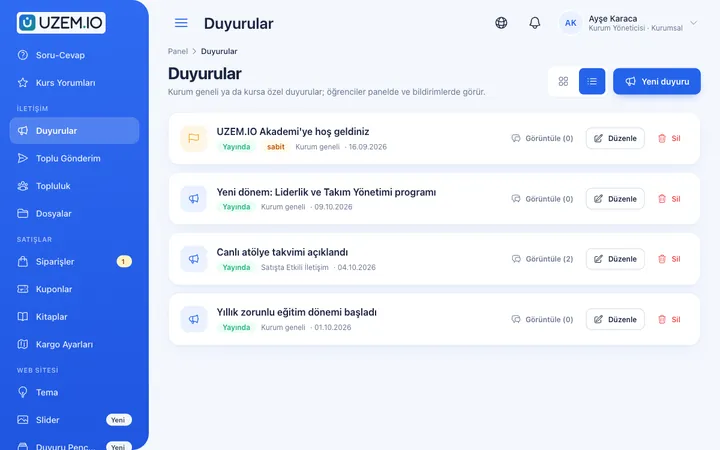
Publish announcements to your whole academy or to specific courses, so important information does not get lost in email and chat groups.
Notifications
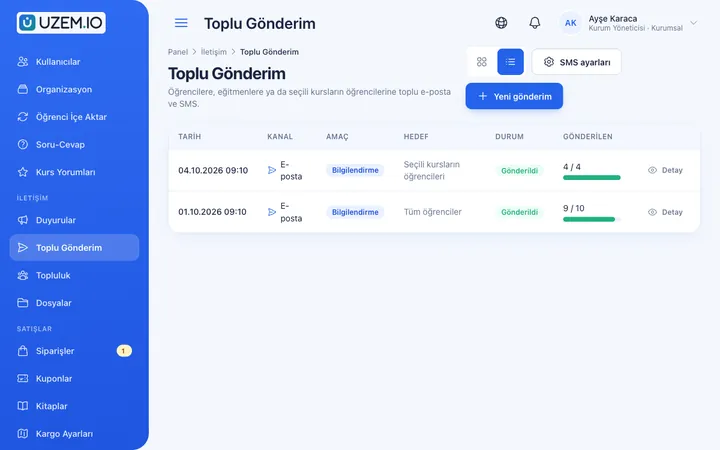
Deliver events such as announcements, exam results and assignment grades through in-app notifications and email; send bulk messages.
Try this setup in your own academy
No credit card required; explore a dashboard set up with sample content right away.
How does it work?
-
Set up the unit structure
Define your departments, regions or locations as a unit tree and place employees in the relevant unit.
-
Prepare the training
Create your courses with video lessons, files, exams and certificate templates.
-
Assign and announce
Assign courses to units; sub-units and employees who join later are included automatically. Keep people informed with announcements and notifications.
-
Follow up
Track completion and exam results by unit and guide those falling behind with reminders.
Sample courses
- Information Security Basics Short video lessons and a final exam on password hygiene, spotting phishing emails and document security.
- Effective Internal Communication Practical tips on email etiquette, running meetings and cross-department collaboration.
- Customer-Focused Service Case studies on difficult customer situations, complaint handling and a consistent service tone.
- Time and Priority Management Techniques for daily planning, prioritizing work and reducing distractions.
Reports filtered by unit and ready to export
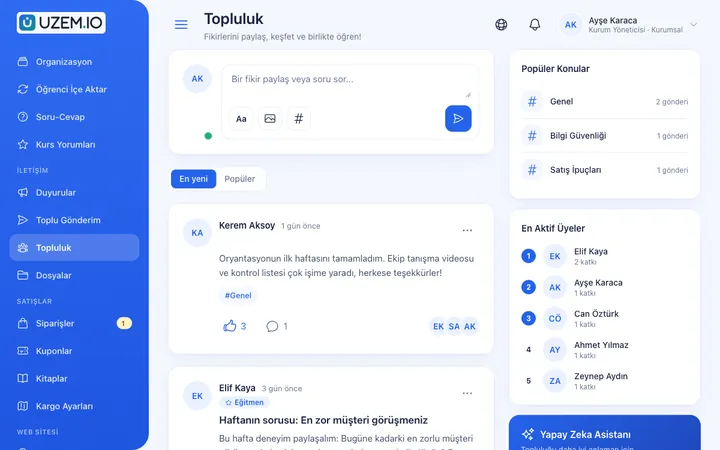
Course progress, exam results and certificates issued appear in one place in reports. You can filter reports by department or location and export them as CSV; large exports are prepared in the background and downloaded when ready. Unit managers see only their own units’ data, read-only.
Frequently asked questions
The 5 most frequently asked questions.
Can't find the answer you're looking for?
Browse the help center or write your question to us.
Which devices can employees use to access training?
UZEM offers a mobile-friendly web interface; employees can sign in from a computer, tablet or phone browser and continue their training.
Do I need to assign training to people one by one?
No. When you assign a course to a unit, its sub-units are included too, and employees added to the unit later are enrolled in the course automatically.
What data can department managers see?
Unit managers see, read-only, only the training data of the units and sub-units they are responsible for; they cannot access other units’ data.
Can we upload our own training content?
Yes. You create your own courses with video lessons, files, exams and assignments. Your organization owns the content.
Do employees who leave keep using a license?
Only active learners count toward the license. When you deactivate an employee who has left, their license is freed up, while past training records are kept.
Industries using this solution
- Corporate Companies
- Holdings and Groups of Companies
- Retail and Store Chains
- Logistics and Transportation
- Industry and Manufacturing
- Banking and Finance
- Healthcare / Hospitals / Clinics
- Aviation
- Tourism / Hotels / Restaurants / Cafes
- Educational Institutions / Schools
- University
- Public Institutions / Municipalities
Set up your academy today
- No credit card details required
- Automatic setup
- You can connect your domain later