Skip to content
UZEM

Corporate training

Assign employee training, know who completed them.

Bring all your programs, from onboarding to mandatory training, into one dashboard. Add your employees in bulk and assign them to courses; see who hasn't watched, who passed the exam and who earned a certificate in reports.

  • Bulk add employees via CSV
  • Sequential, mandatory progress
  • Verifiable certificate
  • Private portal mode
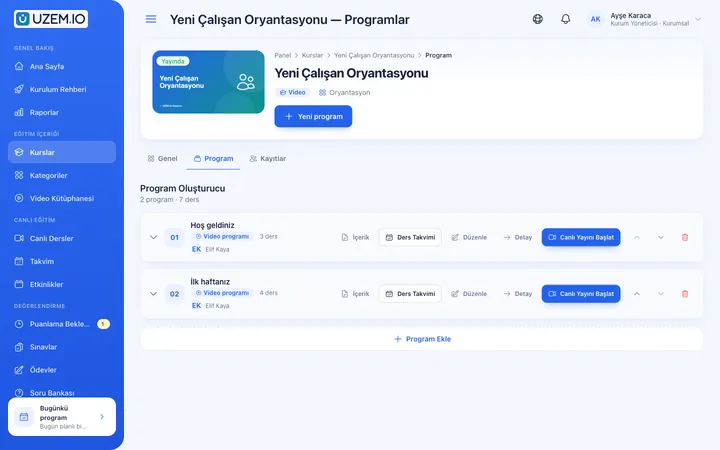
Program management: sequential lessons and learner assignments

Corporate training with real-world scenarios

The setups teams build most often and how they work in UZEM.

New employee onboarding

Add new hires via CSV and bulk-assign them to the onboarding course. Lessons unlock in sequence, and the course viewing report shows what was watched in the first week.

  • Preview before import
  • Those who never watched appear separately in the report
Mandatory and compliance training

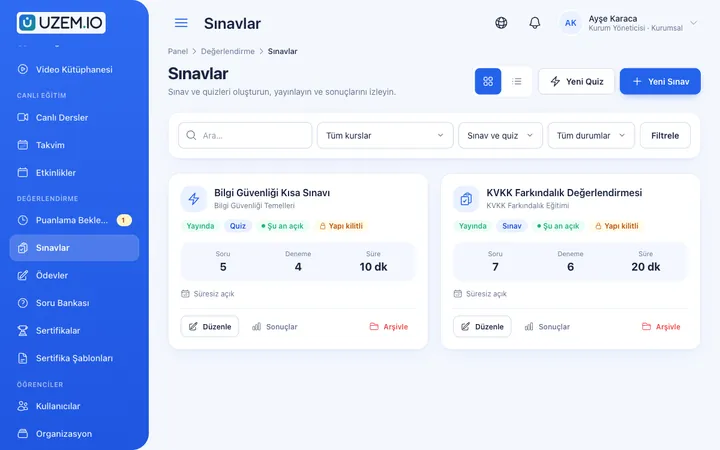
For trainings like occupational safety or KVKK, unlock lessons in sequence, hold an exam at the end and award a certificate to employees who pass.

  • Exam performance and certificate reports
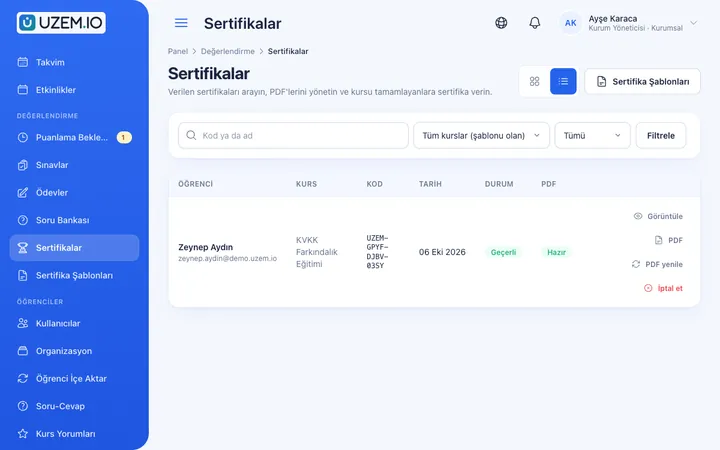
  • Certificate verification with QR code

Dealer and field teams

Your dealers don't need a separate address: with Private Portal Mode your academy is open only to signed-in users, and you can support product training with live sessions.

  • Live product training with Zoom
  • Attendance record

Admin tracking

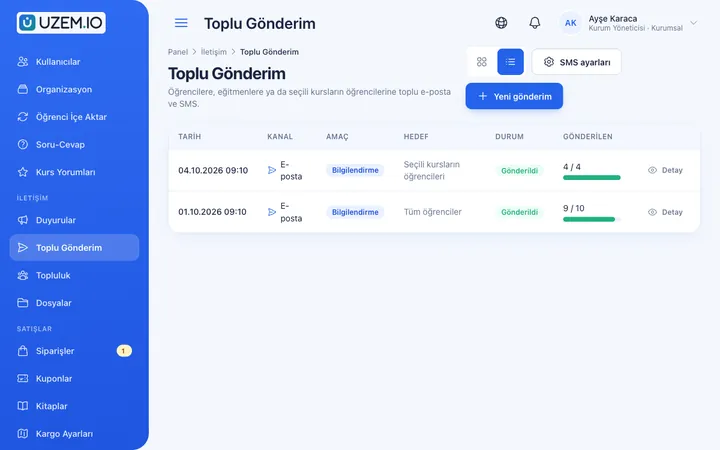
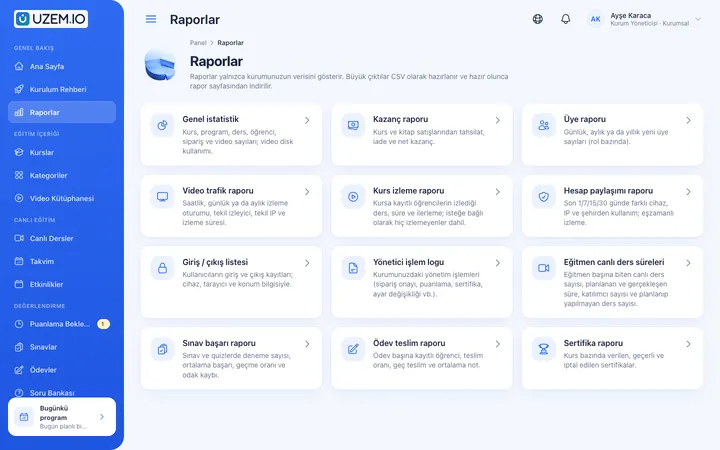
Filter course viewing, exam, assignment and certificate reports; export as CSV whenever you need.

  • Exports are prepared in the queue

Roles and permissions

Instructors see only their own courses; admin roles and permissions are configured to fit your organization.

  • Admin activity log

Data security and KVKK

Your organization's data is kept separate from other organizations. KVKK consents are stored with versions, and critical admin actions are logged.

  • Running on your own domain

Bringing a training program to life

  1. Set up the program

    Prepare the course and lessons in sequence.

  2. Add your team

    Import employees via CSV and assign them to a course in bulk.

  3. Measure

    Verify knowledge with an exam and issue the certificate.

  4. Report

    See who hasn't completed, export the report.

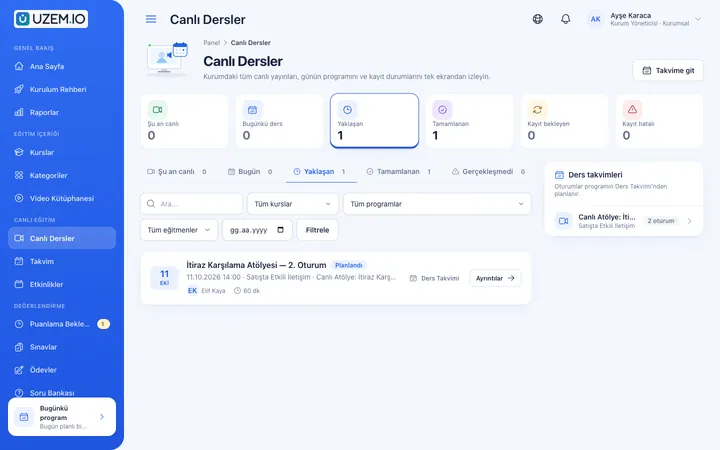
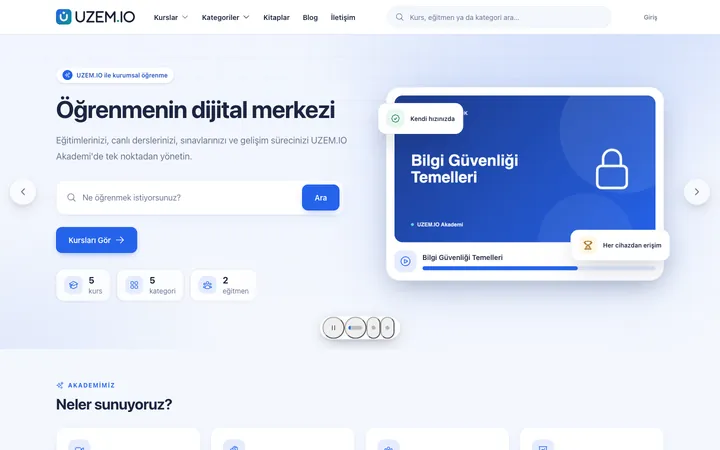
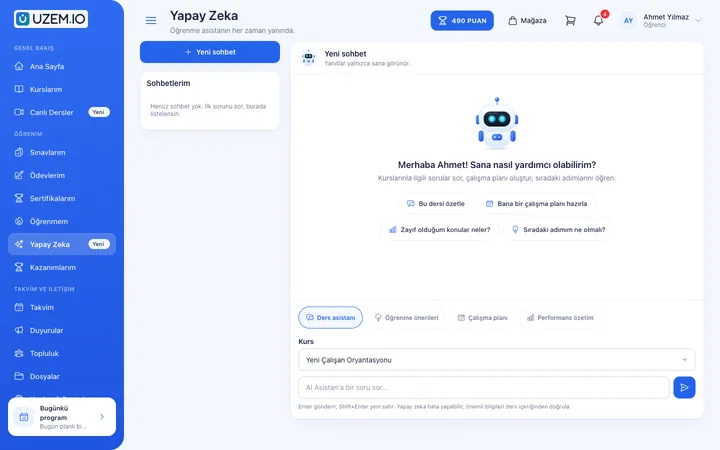
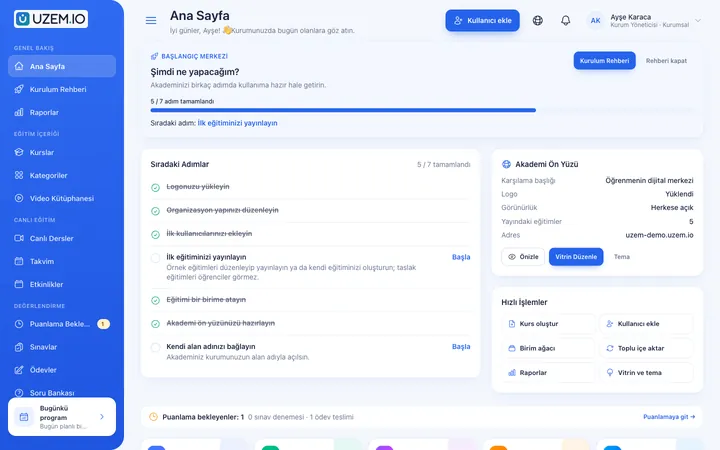
Screenshots are taken from UZEM's real interface with sample data.

Reports
Reports
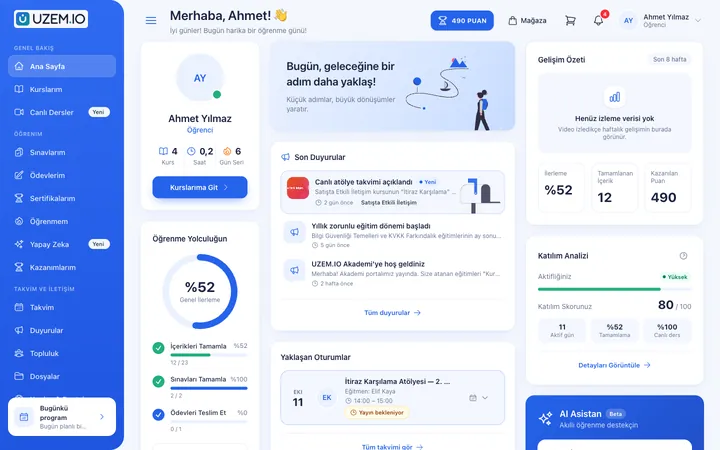
The employee's training dashboard
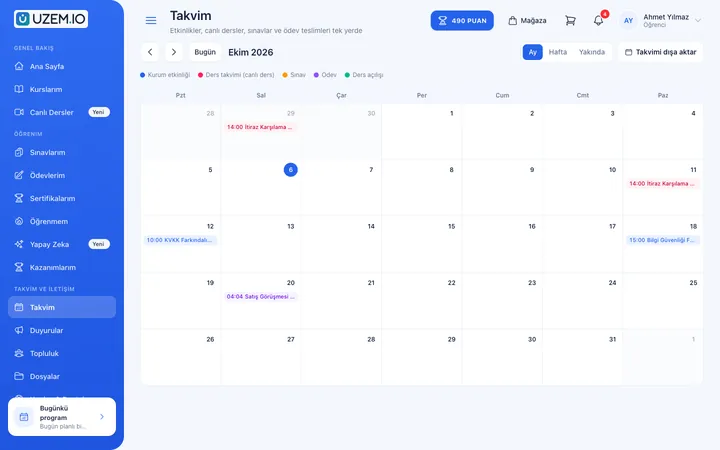
Training calendar
Training calendar
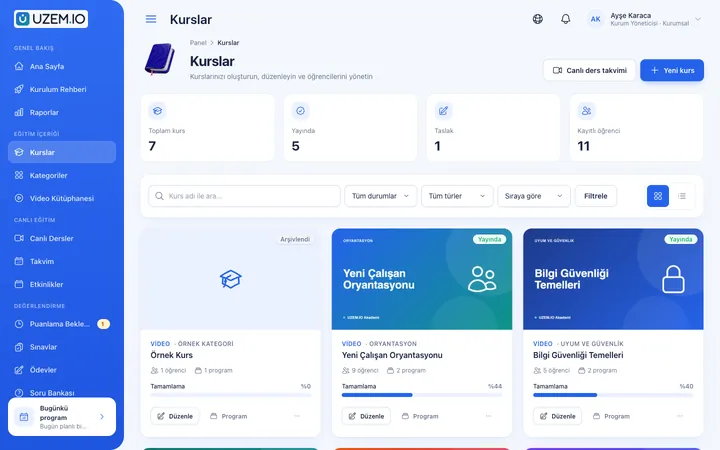
Admin dashboard
Admin dashboard

Frequently asked questions

If the answer you're looking for isn't here, write to us and our team will help.

Help center
Do I have to add our employees one by one?

No. Upload a CSV file with name, email and optional phone columns; rows are checked first, and accounts are created after your approval. You can then assign them to a course in bulk.

How do I see who hasn't completed a training?

The course viewing report shows the lessons watched, time spent and progress of everyone enrolled in the course; if you like, it also lists those who never watched.

Is training content visible from outside?

When Private Portal Mode is on, your academy's storefront closes and visitors see only the sign-in screen. Content is open only to users assigned to the course.

How do you verify that a certificate is genuine?

Every certificate has a QR code and a verification address. This address is public and shows whether the certificate is valid or revoked.

Set up your team's first program today

Prepare a course in your academy with sample content and try it with a few people from your team.

  • No credit card details required
  • Automatic setup
  • You can connect your domain later

Cookie preferences

Strictly necessary cookies are used for the site to work. Analytics and marketing cookies are enabled only with your consent. Cookie policy

Cookie categories

Are you sure?